Installation
Install the droidline server on Windows, macOS or Linux, install the app on the phone and turn on its permissions, then add the SDK for your language.
This page sets up everything once: the server on your PC, the app on your phone, and the library for the language you write in. It takes about fifteen minutes the first time. When you are done, go to the Quick start to pair the phone and send a command.
1. Install the server on your PC
The server is a single program called droidline. The same program is also the command-line tool you will use to pair phones and send commands.
Download the archive for your system from GitHub Releases. File names follow the pattern droidline_<version>_<system>_<cpu>; amd64 is for most PCs, arm64 is for Apple silicon Macs and ARM laptops. Each archive holds three programs:
| Program | What it is for |
|---|---|
droidline | The server and the command-line tool. This is the one you need. |
droidline-fakephone | A simulated phone for trying Droidline without a real one. |
droidline-relay | A relay you can run on your own server for phones on mobile data. |
-
Download
droidline_<version>_windows_amd64.zip(orwindows_arm64on an ARM laptop). -
Right-click the file, choose Extract All, and extract it to a folder you will keep, for example
C:\Tools\droidline. -
Add that folder to your
PATH, so thatdroidlineworks in any terminal. Open PowerShell and run:$dir = "C:\Tools\droidline" $old = [Environment]::GetEnvironmentVariable("Path", "User") [Environment]::SetEnvironmentVariable("Path", "$old;$dir", "User") -
Close the terminal, open a new one, and check:
droidline versionIt prints
droidline 0.1.0or a newer version.
-
Download
droidline_<version>_darwin_arm64.tar.gzfor Apple silicon (M1 and later) ordarwin_amd64for Intel Macs. -
Open Terminal in your Downloads folder, extract the archive and move the programs into
~/.local/bin:tar -xzf droidline_*_darwin_arm64.tar.gz mkdir -p ~/.local/bin mv droidline_*_darwin_arm64/droidline* ~/.local/bin/ -
The programs are not notarized by Apple yet, so macOS refuses to start them the first time. Clear the download flag once:
xattr -c ~/.local/bin/droidline ~/.local/bin/droidline-fakephone ~/.local/bin/droidline-relay -
If
~/.local/binis not on yourPATHyet, add it and open a new Terminal window:echo 'export PATH="$HOME/.local/bin:$PATH"' >> ~/.zshrc -
Check:
droidline version
-
Download
droidline_<version>_linux_amd64.tar.gz(orlinux_arm64on ARM boards and servers). -
Extract it and move the programs into
~/.local/bin:tar -xzf droidline_*_linux_amd64.tar.gz mkdir -p ~/.local/bin mv droidline_*_linux_amd64/droidline* ~/.local/bin/ -
Most distributions already have
~/.local/binon thePATH. Ifdroidline versionsays "command not found", add it to your shell profile and open a new terminal:echo 'export PATH="$HOME/.local/bin:$PATH"' >> ~/.bashrc -
Check:
droidline version
With Go 1.26 or later installed on any system:
go install github.com/KnifeLemon/Droidline/server/cmd/droidline@latest
go install github.com/KnifeLemon/Droidline/server/cmd/droidline-fakephone@latest
The programs land in Go's bin folder (go env GOPATH shows where it is, with /bin added). Make sure that folder is on your PATH, then check with droidline version.
2. Start the server
Open a terminal and run:
droidline serveIt prints where phones and your code connect, then waits:
Droidline 0.1.0 on MY-PC
  phones connect to   :8779 (TCP, TLS and WebSocket)
  your code connects  127.0.0.1:8780
  settings            C:\Users\you\AppData\Roaming\Droidline

No phone paired yet. In another terminal run: droidline pair
Leave this window open. The server only runs while it is open; to stop it, press Ctrl+C. To start it automatically, see Configuration.
3. Install the app on the phone
The app is not on Google Play. It is published as an APK file on the same release page, signed by the project.
- On the phone, open GitHub Releases in the browser and download
droidline-agent.apk. - Open the downloaded file. Android asks whether your browser may install apps; allow it for this install. After the app is installed you can turn that permission off again.
- Open Droidline. It starts on the Setup tab, which lists every permission and shows which ones are still off.
4. Turn on the permissions
Each row on the Setup tab has a button that opens the right Android settings screen. Turn them on from top to bottom.
| Permission | Needed for | Required |
|---|---|---|
| Accessibility service | Reading the screen, tapping, swiping and typing | Yes |
| Droidline keyboard | Key codes, typing into stubborn fields, reading the clipboard | Yes |
| Notifications | Showing the connection status | Yes |
| Battery optimization: Not restricted | Staying connected while the screen is off | Yes |
| Notification access | Notification events on the PC | Only if you use them |
| VPN permission | The per-app proxy | Only if you use it |
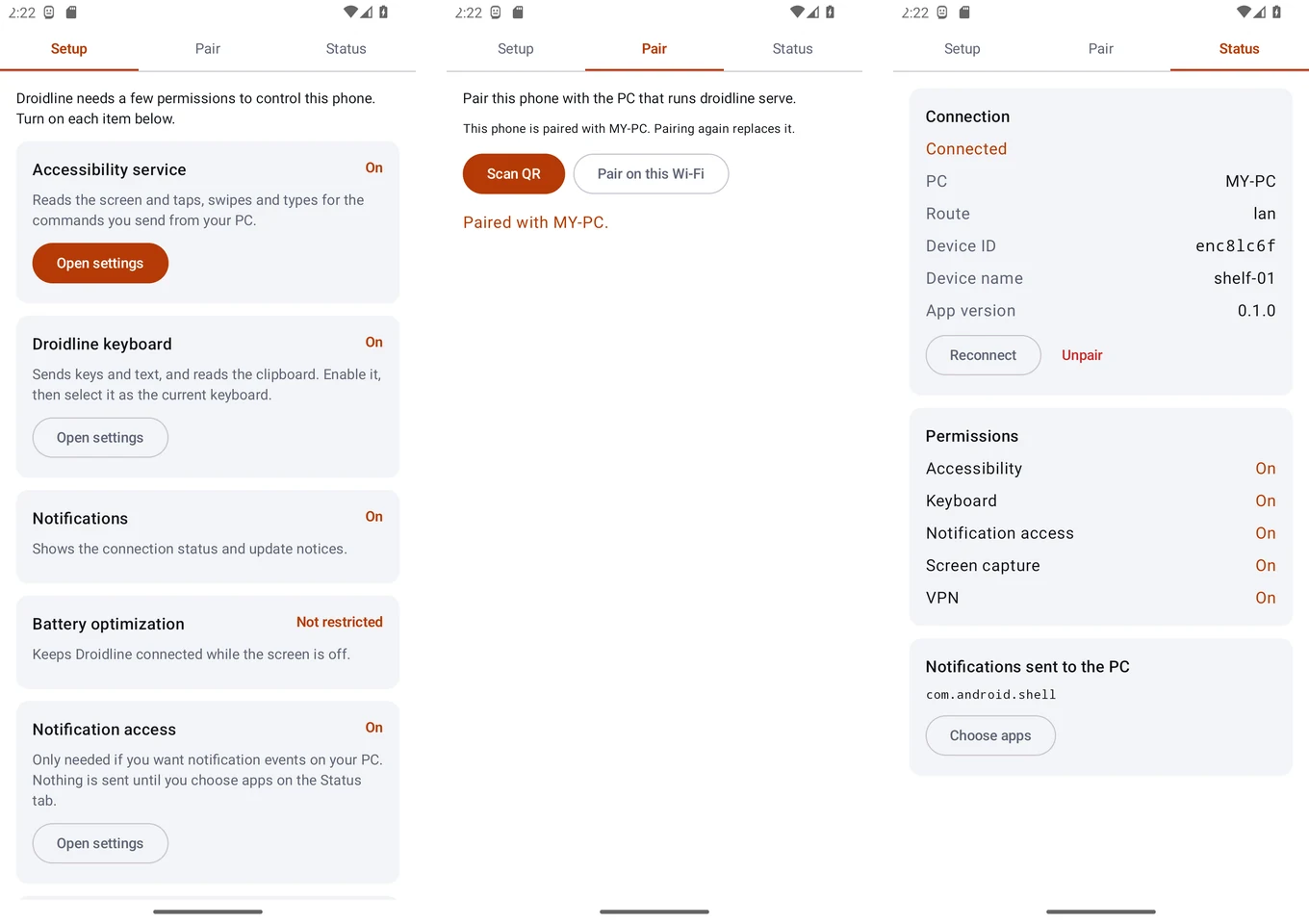
Accessibility service
This is the permission that lets Droidline see the screen and act on it. Tap Open settings, find Droidline in the list (it may be under Installed apps or Downloaded apps), and turn it on.
Droidline keyboard
Droidline ships its own keyboard. It is used when a command sends a key such as Enter, when a text field ignores normal text input, and to read the clipboard. Tap Enable, turn on Droidline keyboard, then tap Select and choose it as the current keyboard.
You can still type yourself: the Droidline keyboard shows a Switch keyboard button that goes back to your usual keyboard. Commands that need it switch to it on their own.
Notifications and battery
Allow notifications so the app can show its connection status, and set battery optimization to Not restricted. Without the second one, many phones stop the connection a few minutes after the screen turns off.
When every required row says On, the phone is ready to pair.
5. Install the library for your language
Skip this step if you only want to use the command line. The droidline program you installed in step 1 already sends commands.
pip install droidlinenpm install droidlineThe Python package needs Python 3.9 or later and has no dependencies. The Node.js package needs Node.js 18 or later, ships ES modules and includes TypeScript types.
Other languages need no library: they talk to the server over HTTP or a plain socket.
6. Check the setup
With droidline serve still running, open a second terminal and run:
droidline doctorsettings: C:\Users\you\AppData\Roaming\Droidline
secrets: Windows DPAPI (current user)
[ok ] server answers on 127.0.0.1:8780
version 0.1.0, agent port 8779, language en
[FAIL] 0 paired phone(s)
pair one with: droidline pair
[ok ] this PC has a private network addressThe paired phone check fails until you pair one, which is the next step: Quick start.
Updating and removing
- Server: download the new archive and replace the programs. Your settings and paired phones live in a separate folder and are kept.
- App: install the new APK over the old one.
- Libraries:
pip install -U droidlineornpm install droidline@latest.
To remove Droidline completely, delete the programs, uninstall the app, and delete the settings folder listed by droidline doctor.